How do I backup my files and folders in XP?

How do I backup my files and folders in XP?

http://www.winxptutor.com/ntbackup.htm

Windows XP comes with a backup tool called NTBACKUP (NTBACKUP.MSI from Windows XP CD-ROM). In Windows XP Home Edition, this tool has to be installed manually from the CD-ROM, whereas in Windows XP Professional, this tool is installed by default.
Double-click the Ntbackup.msi file in the following location on the Windows XP Home Edition CD to start a wizard that installs NTBackup: X:\VALUEADD\MSFT\NTBACKUP
X:\ refers to the CD-ROM drive-letter
Note: Usually, OEMs such as Compaq, DELL won't ship the Windows XP CD nor they include the NTBACKUP utility by default. You can download a copy of NTBACKUP.MSI here.
Backing up your files using NTBackup Utility:
Click Start, Run and type NTBACKUP
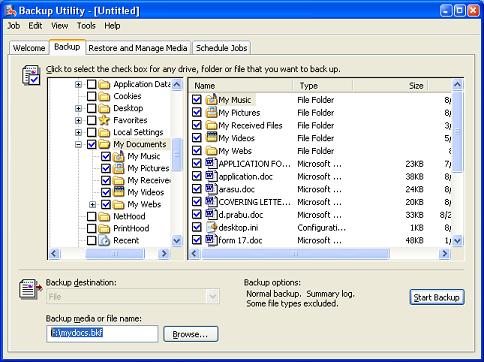
Select Backup tab at the top
In the left pane, scroll to the file/folder which you want to backup and put a checkmark on it.
At the bottom, mention the output filename (the backup output)
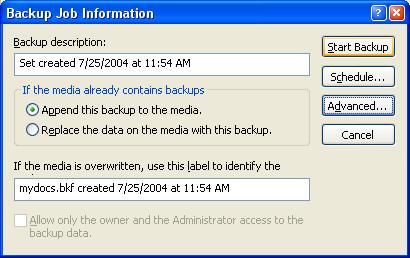
Once set, click Start Backup button in the right, and again click Start Backup in resulting dialog
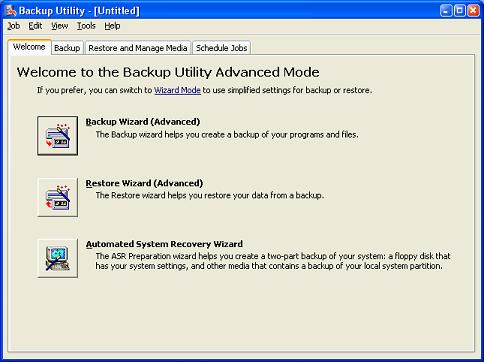
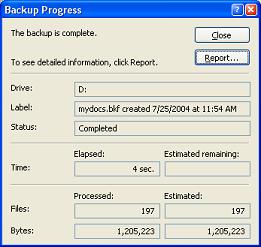
ntbk1.JPG (31692 bytes) >ntbk2.JPG (45596 bytes) 
ntbk3.JPG (26699 bytes) > ntbk4.JPG (16657 bytes)
NTBACKUP does not have the ability to write to CDs directly. You will need to save the backup to hard drive, then transfer or burn it to a CD-ROM. Also, while backing up several files, make sure you backup the files in separate sets of each max 650MB (so that it fits on a CD-ROM)

UNC Parking Shuttle- Basketball

Mr. Redding,

I’m not sure if this is the information you’re looking for, but here is a link to some game day parking information: http://tarheelblue.cstv.com/facilities/unc-smith-center.html#parking. I have also pasted the information below. Here is another link from the DPS website: http://www.dps.unc.edu/SpecEvent/Basketball.pdf.

·  PARKING
EVENT SHUTTLE SERVICE
For select Smith Center events, Chapel Hill Transit will run Tar Heel Express shuttle buses. Service starts 1.5 hours before the scheduled start of an event. Buses operate from 2 or more of the following locations (call 919-969-4900 for specific lots for your event). The one-way fare for the shuttle is $3.00 and $5.00 for round-trip. Return trips begin immediately after each event and continue for about 30-40 minutes.
·  Jones Ferry: Jones Ferry Road heading toward university lake from NC 54
·  Route 54 East: Park and Ride Lot adjacent to the Friday Continuing Education Center
·  Route 15-501 South: Southern Village Park and Ridge lot (between Culbreth and Dogwood Acres Roads)
·  Route 15-501 East: University Mall at Estes Drive
For more information concerning upcoming events, you can call the 24 hour Special Events Information Line at 919-962-3951 or check out the http://www.ci.chapel-hill.nc.us/transit/.
PARKING Limited parking is available on-site during special events, while during basketball games, all lots surrounding the Smith Center are reserved. During Smith Center events, traffic around the Center will be restricted. During weekday events, Skipper Bowles Drive will be closed to thru traffic starting at 6:00pm. A parking fee is charged per car and may vary from event to event, but are typically as follows:
·  Automobile Parking $7.00
·  Limousine Parking $20.00
·  Bus and Large RV Parking $40.00
·  Assistance Arranging Charter $25.00
·  RV Parking off-campus after 5 p.m. on weekdays and weekends only (Free at the Friday Center Park and Ride Lot)
·  Bus Parking (fee in addition to parking fee)

Thanks,

Lizzie Stewart
Director, Tar Heel Athletic Hospitality
919.843.3058 Direct
lmstewart@unc.edu

Lesson upload to Smugmug using Windows Explorer to show the images in process

Here is what we went over today:

NOTE : Pictures will not show up in this post until I work on it more.
If you want to see  the thumbnails/photos before you send to Smugmug:

  1. Close all Windows on your desktop
  2. Open Windows Explorer by pushing the Windows key and the E key at same time, release both and  Windows Explorer should have opened.
  3. Go to Smugmug
    1. Goto Gallery you want to put pictures in or create new Gallery
    2. Select Upload and you get this
  4. In lower right of the task Bar find and empty space and tight click and select to tile vertical or side by side, whatever . .

  5. Windows Explorer,
    1. Be sure is Opened (Windows Explorer using the Windows Key and the E Key)
    2. Set View to thumbnails or large Icons, whatever
    3. Find the directory (or folder, same thing) where the pictures are you want to send to Smugmug.
      1. In your case they are in your documents . . /my pictures . . /and a file named by date. In mine they are in 2011/201103/20110303_freedom P . . . . as below:
  6. Copy the pictures from Windows Explorer to Smugmug
    1. I notice Smugmug uses "MOVE" instead of "COPY" for sending pictures  to upload screen. I consider it a copy because your pictures stay in original place and a copy goes to Smugmug)
    2. To Copy only one and upload to Smugmug
      1. In the directory using Windows Explorer, Left click on the picture you want to copy and keep it down and drag it to the Smugmug upload window near bull's Eye
      2. Release and it should start uploading by it self usually
      3. (Also could use below procedure and select just one picture . . )
    3. To copy more than one one and upload to Smugmug
      1. Push down the Ctrl Key with the left had and keep down til I tell you to release
      2. Left click with mouse on all the pictures to want to copy
      3. Keep Ctrl button and left mouse button down and drag to Smugmug Upload Window
      4. Pictures should start uploading by them self
  7. When you are ready We can have another lesson on how to use above procedure and copy a whole directory to Smugmug.
  8. A copy of this is on line at


Here are some other time saving combinations from early work:


  1. Some of the first things one needs to know to use the Internet and to send emails include Typing even hunt and peck, How to select, How to copy, How to put what you copied somewhere else, called paste, and How to double click.
  2. A computer  mouse is  a device to make it easier to use a computer and has at least a right side (R) button and left side (L)  button on the top which lets one push down to do  computer tasks. Pushing down the R or L button is called clicking
  3. To click (assuming you are right handed),  Push down the Left (L) Button using the right  hand
  4. To double click (assuming you are right handed), Push down the (L)  button two times very fast
  5. A Cursor is the arrow you see on screen when you move mouse around
  6. Select means to highlight a word or words using the mouse and cursor.
  7. To select, put the cursor to either end of  word(s), push down and hold the right mouse button and slide cursor to highlight to other end of word(s) and release.
  8. To copy something highlighted, push CTR and  c key (referred to as CTR+C) at same time and release.The selection is in memory
  9. To cut (remove) something highlighted, push CTR+X at same time and release.The selection is in memory
  10. To paste or add something  that has been copied or cut,  put cursor where you want the selection to go, push CTR + V at same time and release. The selection still is in memory if you want to repeat.
  11. Ctrl+Q will quit many programs
  12. Ctrl+S will save most work underway in many programs
  13. Ctrl+P will print in many programs
  14. Ctrl+A will select a lot of stuff for further action
  15. Ctrl+C will copy what you have selected
  16. Ctrl+V will "paste" what you have copied
  17. Ctrl+X will  remove what you selected