20120325 20110928 HotKey ShortCuts (open)
sssssssssssss
sssssssssssssssssssssss
hhhhhhhhhhhhhhhhh
cam sMug
saw Word
sat wordpad (Text)
sap windows media Play
20141229 20120325 20110928 HotKey ShortCuts
Update on 12/29/2014, x=not working
https://docs.google.com/spreadsheet/ccc?key=0Ato2U8N1cupXdEdldlp5YW1ZMkVMaUhqOUExSFZxemc#gid=0
cam sMug
saw Word
sat wordpad (Text)
sap windows media Play
20141229 20120325 20110928 HotKey ShortCuts
Update on 12/29/2014, x=not working
https://docs.google.com/spreadsheet/ccc?key=0Ato2U8N1cupXdEdldlp5YW1ZMkVMaUhqOUExSFZxemc#gid=0
| abc | CA | SA | 1 2 3 4 | |
| A | ||||
| B | BAC | |||
| C | Calendar/xCamrecorder | |||
| D | Datasync | xdon smugmug | ||
| E | ||||
| F | Format Factory | |||
| G | Google docs | |||
| H | Homex | xHotKey(Blog) | ||
| I | Indexx | |||
| J | xJournal | |||
| K | ||||
| L | ||||
| M | Mail/xMenu (old) | xMailwasher | ||
| N | xnotePad | |||
| O | Ownbey blog | |||
| P | xPicture | xwindows media Play | ||
| Q | ||||
| R | xca$ | |||
| S | HP | xsmugMug | ||
| T | xTo do | xWordpad (Text) | ||
| U | ||||
| V | teamViewer | |||
| W | Word | |||
| X | ||||
| Y | ||||
| Z | Home | |||
| F1 |
| |||
| F2 | '=Smugmug | |||
| F3 | ||||
| F3 | ||||
| F5 | ||||
| F6 | ||||
| F7 | ||||
| F8 | ||||
| F9 | ||||
| F10 | ||||
| F11 | ||||
| F12 | F12 Snip |

Embed Page in Another
If you want to make a document, spreadsheet, presentation, or drawing
available for a large audience to see, you can publish the file. Once
you publish your file, you will receive a URL that you can send to
anyone you choose or embed into your own website.
spreadsheet program offered by Google. It involves a small hack, which I will describe below.
While Google Sheet’s Share button makes it easy to share a link to a spreadsheet, and allows the owner of the spreadsheet to enable anyone to edit it, editing is not possible if the embed option is chosen for the File>Publish to the Web feature.
That is, when you embed the spreadsheet on a blog post or Web page, you won’t be able to edit or format the cells, or create formulas. For example, here is an embedded spreadsheet. Notice you can highlight cells, but can’t input or change information, or use any other features of Sheets:
But there’s a workaround. Follow these steps:

At that point, once you’ve published the page, the live spreadsheet will not only be visible, but it will also be editable. To see an example, visit this page on the official Excel Basics In 30 Minutes website.
If this tutorial has been helpful, please consider tweeting or sharing it elsewhere.
<iframe src="http://donredding.com/latest.html" height="500"
Suppose you want to integrate a website or a particular webpage with your blog. Some possibilities, you may be auctioning some items on eBay and you want your ebay offering in your blog or perhaps you have an Amazon AStore and want to embed the AStore into a post in your blog. Click here to see a sample.
What you can do is to first obtain the URL of that webpage and put it in an iFrame as follows:
<iframe src ="URL of the website you want to embed" width="100%" height="300">
<p>Your browser does not support iframes.</p>
</iframe>
http://donredding.com/latest.html
<iframe src ="http://donredding.com/latest.html" width="100%" height="300">
<p>Your browser does not support iframes.That's TecTalk for it won't work on your computer, sorry</p>
</iframe>
<iframe src ="http://donredding.com/latest.html" width="900px" height="500">
<p>Your browser does not support iframes.That's TecTalk for it won't work on your computer, sorry</p>
</iframe>
The variables you can change are highlighted in red. It is best to leave width as 100% as then your iFrame will adjust to the available space (width) at the place you want to put your iFrame. You can also specify in exact pixels, example 360px instead but you will then have to ensure the the width you specified suits the width available. The height too you can edit to what you want.
The part highlighted in green:
<p>Your browser does not support iframes.That's TecTalk for it won't work on your computer, sorry</p>
you can leave out if you want, leaving
<iframe src ="URL of the website you want to embed" width="100%" height="300"> </iframe>
and it will still work, but it is best to have it there because if a visitor to your webpage uses a browser that does not support iFrame, then they will see the message
Your browser does not support iframes.
rather than being mystified by a blank space.
Some important notes: The content of an iFrame will not be spidered by search engines which may be a negative point if that is what you want, but to me it is a plus point because it will prevent duplicate content which is not liked by search engines and which may draw a penalty.
As an example, I will embed my Blogger's Bookstore below to serve as an illustration and perhaps you may see some books that may interest you:
spreadsheet program offered by Google. It involves a small hack, which I will describe below.
While Google Sheet’s Share button makes it easy to share a link to a spreadsheet, and allows the owner of the spreadsheet to enable anyone to edit it, editing is not possible if the embed option is chosen for the File>Publish to the Web feature.
That is, when you embed the spreadsheet on a blog post or Web page, you won’t be able to edit or format the cells, or create formulas. For example, here is an embedded spreadsheet. Notice you can highlight cells, but can’t input or change information, or use any other features of Sheets:
But there’s a workaround. Follow these steps:
- Open the spreadsheet, and select _File>Publish to the Web
- In the Publish to the Web popup, press the Start publishing button
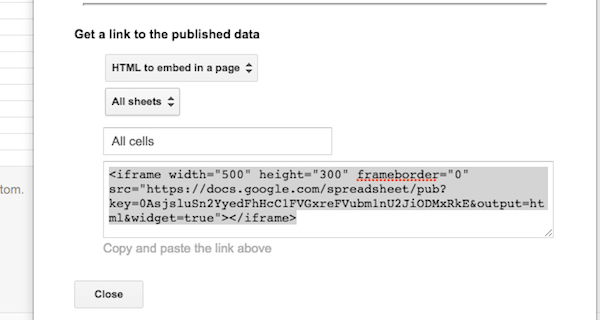
- Under Get a link to the published data, change Web page to HTML to embed in a page
- Copy the embed code, which will look something like this:
- Go back to the spreadsheet in Google Sheets, and press the Share button
- In the Share with others popup, click Advanced
- Under Who has access, click the Change link and select On: Anyone with link
- At the bottom of the Who has access popup, change the Can view drop-down to Can edit and click Save
- The Sharing settings popup will appear. Copy the Link to share and close the popup
At that point, once you’ve published the page, the live spreadsheet will not only be visible, but it will also be editable. To see an example, visit this page on the official Excel Basics In 30 Minutes website.
If this tutorial has been helpful, please consider tweeting or sharing it elsewhere.
How to embed webpage in blog with iFrame
__________________________________________________________________
__________________________________________________________________
ZZZ
not sure what all the & 's are , following uses
<iframe src="http://donredding.com/latest.html" height="500"
width="900px"> &lt;p&gt;Your browser does not support iframes.That's TecTalk
for it won't work on your computer, sorry&lt;/p&gt; </iframe><br>
Note: Embedding a webpage in an iFrame in your own blog of website is equivalent to copying that webpage into your own website or blog so it is good to ask permission of that webpage you want to embed. In the example below, I uses my own Amazon's Blogger's AStore Bookshop so there no copyright issue as it is my own webpage.
What you can do is to first obtain the URL of that webpage and put it in an iFrame as follows:
<iframe src ="URL of the website you want to embed" width="100%" height="300">
<p>Your browser does not support iframes.</p>
</iframe>
http://donredding.com/latest.html
<iframe src ="http://donredding.com/latest.html" width="100%" height="300">
<p>Your browser does not support iframes.That's TecTalk for it won't work on your computer, sorry</p>
</iframe>
<iframe src ="http://donredding.com/latest.html" width="900px" height="500">
<p>Your browser does not support iframes.That's TecTalk for it won't work on your computer, sorry</p>
</iframe>
The variables you can change are highlighted in red. It is best to leave width as 100% as then your iFrame will adjust to the available space (width) at the place you want to put your iFrame. You can also specify in exact pixels, example 360px instead but you will then have to ensure the the width you specified suits the width available. The height too you can edit to what you want.
The part highlighted in green:
<p>Your browser does not support iframes.That's TecTalk for it won't work on your computer, sorry</p>
you can leave out if you want, leaving
<iframe src ="URL of the website you want to embed" width="100%" height="300"> </iframe>
and it will still work, but it is best to have it there because if a visitor to your webpage uses a browser that does not support iFrame, then they will see the message
Your browser does not support iframes.
rather than being mystified by a blank space.
Some important notes: The content of an iFrame will not be spidered by search engines which may be a negative point if that is what you want, but to me it is a plus point because it will prevent duplicate content which is not liked by search engines and which may draw a penalty.
As an example, I will embed my Blogger's Bookstore below to serve as an illustration and perhaps you may see some books that may interest you:
20150525 Adding Hard Drive to W7 some day!
My W7 is 20120308 HP W7 Computer HPE PC h8-1237c (Click for Smugmug Pictures)
and it has a 2 T hard drive and it is 60& full, so I will need another hard drive in the next couple of years. My Hard Drive is a Hitachi
(Hitachi HDS723020BLA642) repeat
(Hitachi HDS723020BLA642)
though I am not necessarily wanting the same based on internet comments.
hhhhhhhhhhhhhhhhhhhh
The W7 is a

This document provides step-by-step instructions and links to a video on how to remove and add an IDE hard drive on HP and Compaq desktop computers. The document also provides instructions for replacing an IDE drive with a Serial ATA (SATA) drive.
and it has a 2 T hard drive and it is 60& full, so I will need another hard drive in the next couple of years. My Hard Drive is a Hitachi
(Hitachi HDS723020BLA642) repeat
(Hitachi HDS723020BLA642)
though I am not necessarily wanting the same based on internet comments.
hhhhhhhhhhhhhhhhhhhh
The W7 is a
This document provides step-by-step instructions and links to a video on how to remove and add an IDE hard drive on HP and Compaq desktop computers. The document also provides instructions for replacing an IDE drive with a Serial ATA (SATA) drive.
It might help to print this article for easy reference before starting the hardware change.
note:HP cannot be held liable for damage resulting from improper installation of software and/or parts, or the installation of parts and/or software that were not supplied by HP.
note:The images in this document might not be exactly the same as the computer you are using.
note:HP cannot be held liable for damage resulting from improper installation of software and/or parts, or the installation of parts and/or software that were not supplied by HP.
note:The images in this document might not be exactly the same as the computer you are using.
Before you begin, check the following items:
-
If installing an additional drive, make sure that your computer has at least one additional drive bay. Many HP and Compaq desktop computers only have one drive bay and it is already in use. For these computers the only option is to upgrade the hard drive. (Click for more . . .)
Google Docs and Google Drive - Difference between
- March 19, 2013 Google Apps
- I think main difference is that Google Docs and Google Drive is that
- Google Docs lets one edit and
- Google Drive does not let one edit.
- dsr 3/26/2015)
- There may be some confusion on the difference between Google Drive and Google Docs.
- Google launched Google Drive to offer an alternative to other online shared document systems like Microsoft 365.
- Portions of the existing Google Docs platform,
- specifically the document storage system, . . .
- were migrated to the new Google Drive service.
- So, what exactly does Google Docs do?
- Google Docs is the web-based editing program that allows users to create, share and edit documents through a secure networked system.
- There are also offshoots called Google Sheets and Google Slides that allow users to create spreadsheets and PowerPoint presentations.
- The beauty of the Google Docs system is that users can upload Word or other text-based documents into the system and convert them to the online editing program.
- From there, multiple users can work on the same document in real time
- , adjusting margins, adding pictures, editing content
- and putting the finishing touches on documents from any location with internet access.
- also allows multiple versions of documents to be stored, allowing users to roll them back to previous incarnations without losing any information.
- also allows the document owner to determine what privileges are given to each user.
- This means that you can have multiple viewers, editors and commenters on a single project.
- When the project is complete, it can be saved and transferred to a desktop in Word, OpenOffice, RTF, PDF or HTML format
- .....as well as having the option to be placed in a zipped file.
- is a cloud storage solution for storing files.
- If you are a highly mobile person or you work remotely with several collaborators, is your personal file depository.
- is set up to allow multiple users to have access to files and folders from any Internet connected device that supports the Google Drive application.
- is an extremely cost-effective way to store
- documents, presentations, music, pictures, videos or any other files that you can’t afford to lose.
- If your laptop, desktop or files storage system crashes, is your insurance policy.
- Another nice feature of is the ability to open files
- in formats that aren’t supported by your computer.
- The files can be opened in a web browser
- and automatically search out
- and use the correct program to view the file.
- If you are a legacy user of Google Docs, here are the major changes since the launch of .
- Where you used to have a Google Documents List, now you know all of your files will be saved directly in the .
- The Google Docs folder on your desktop can easily be replaced with the new folder
- and is used in exactly the same way
- . . .to shared files to your online drive.
- has multiple ways to find, sort and view your files unlike the previous Documents List which was admittedly limited.
- One of the most impressive new features is the ability to search for text in picture files,
- something that can help you find exactly what you are looking for when everything is generically labeled image_0056, image_0057, etc.
2014-2015 Men's College Basketball Scores
http://www.sportsnetwork.com/merge/tsnform.aspx?c=charlotte2&page=cbask/conf/acc/confsched.aspx?season=,sc=AE,conf=Atlantic%20Coast
| ||||||||||||||||||||||||||||||||||||
| Men's College Basketball | ||||||||||||||||||||||||||||||||||||||||||||||||
|
||||||||||||||||||||||||||||||||||||||||||||||||
Read more here: http://www.sportsnetwork.com/merge/tsnform.aspx?c=charlotte2&page=cbask/conf/acc/confsched.aspx?season=,sc=AE,conf=Atlantic%20Coast#storylink=cpy | ||||||||||||||||||||||||||||||||||||||||||||||||||||||||||||||||||||||||||||||||||||||||||||||||||||||||||||||||||||||||||||||||||||||||||||||||||||||||||||||||||||||||||||||||||||||||||||||||||||||||||||||||||||||||||||||||||||||||||||||||||||||||||||||||||||||||||||||||||||||||||||||||||||||||||||||||||||||||||||||||||||||||||||||||||||||||||||||||||||||||||||||||||||||||||||||||||||||||||||||||||||||||||||||||||||||||||||||||||||||||||||||||||||||||||||||||||||||||||||||||||||||||||||||||||||||||||||||||||||||||||||
Subscribe to:
Posts (Atom)