or
http://www.pcworld.com/article/2095481/if-we-show-you-how-to-back-up-your-pc-for-free-will-you-finally-do-it.html#tk.nl_pwr
If we show you how to back up your PC for free, will you finally do it?
While backing up your data can be as simple as dumping critical files on a USB key or external hard drive every now and again, you’ll ideally want to make multiple backups and store them on different drives—preferably with the drives stashed at different physical locations. Here's an easy, comprehensive three-pronged backup method, using free tools, that can save your bacon in the event of a catastrophic OS failure.
Creating Windows images with System Backup
The built-in Windows imaging tool—which creates a backup of all the data on your drive, including Windows itself and your settings, programs, and files—is nowhere near as comprehensive as some premium solutions, and it sometimes has issues with restoring system images from one machine to another, but for maintaining a personal computer it’s acceptable.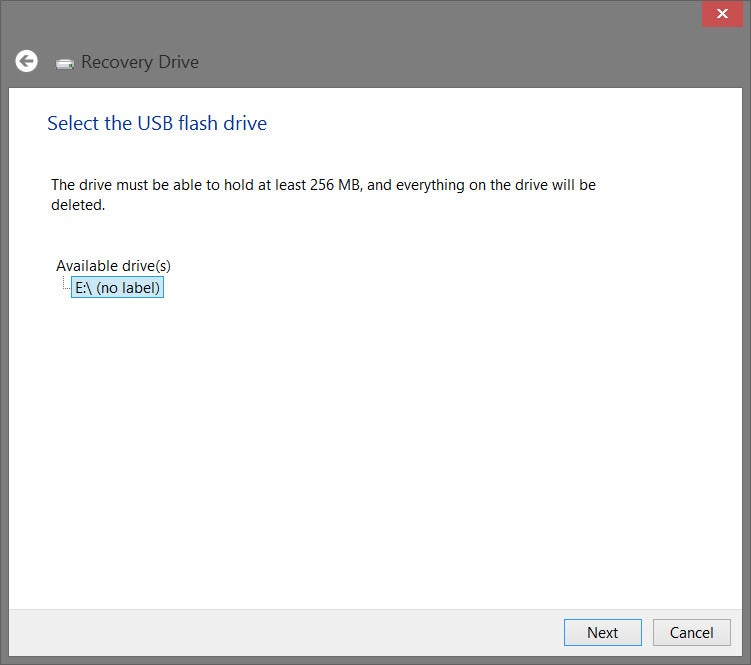
recovery
in the Start menu or Windows 8's Start screen, then click on the
Recovery link in the results. In the window that opens, click the link
to create a recovery drive and insert a USB flash drive into your system
to use as the recovery disk. Be warned: Any data on the drive will be
destroyed when creating the recovery disk. Follow the on-screen
instructions, and Windows will create the recovery disk in a few
seconds.
Once the recovery disk is created, try booting to it. If it works properly you’re ready to create a system image. Restart Windows, go to your Start screen, and type
File History. Click on the File History link that appears and click on the System Image Backup link at the lower-left of the window. Windows 7 users can find the feature at Control Panel > System and maintenance > Backup and Restore > Create a system image.

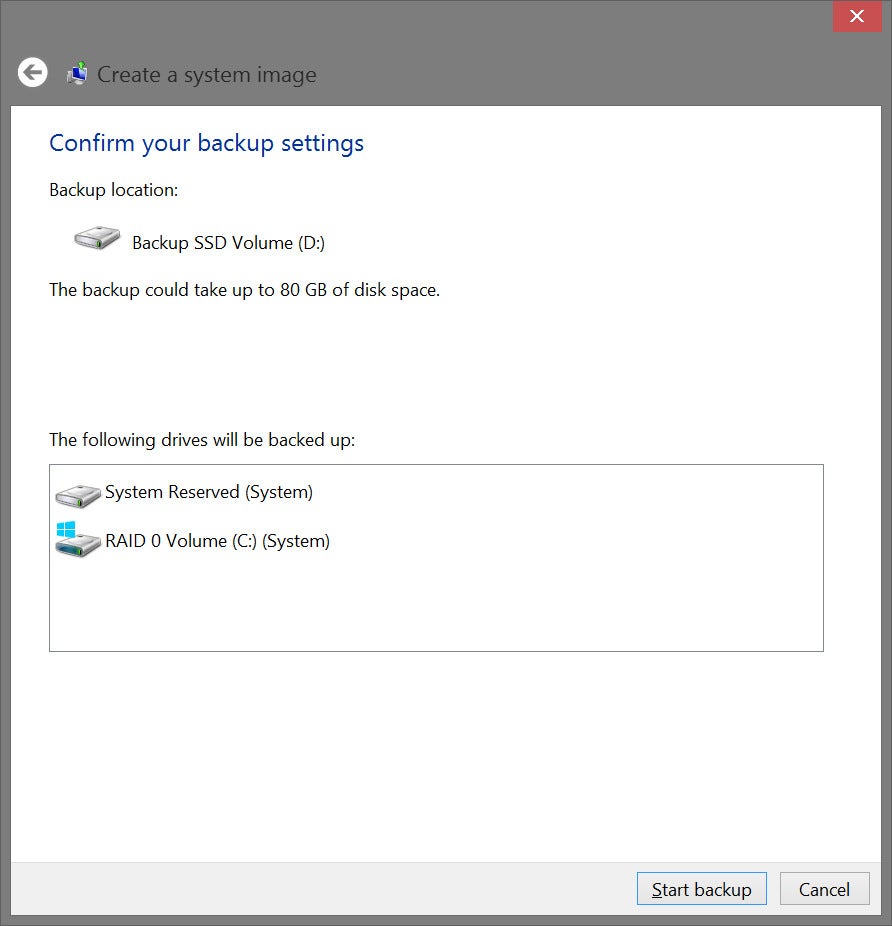
Next, you’ll be asked to confirm your backup settings. Double-check that you’re backing up your primary drive, which contains your operating system, applications, personal files, and the like. If the correct drive is listed, click the Start Backup button, and the Windows imaging tool will create the system image.
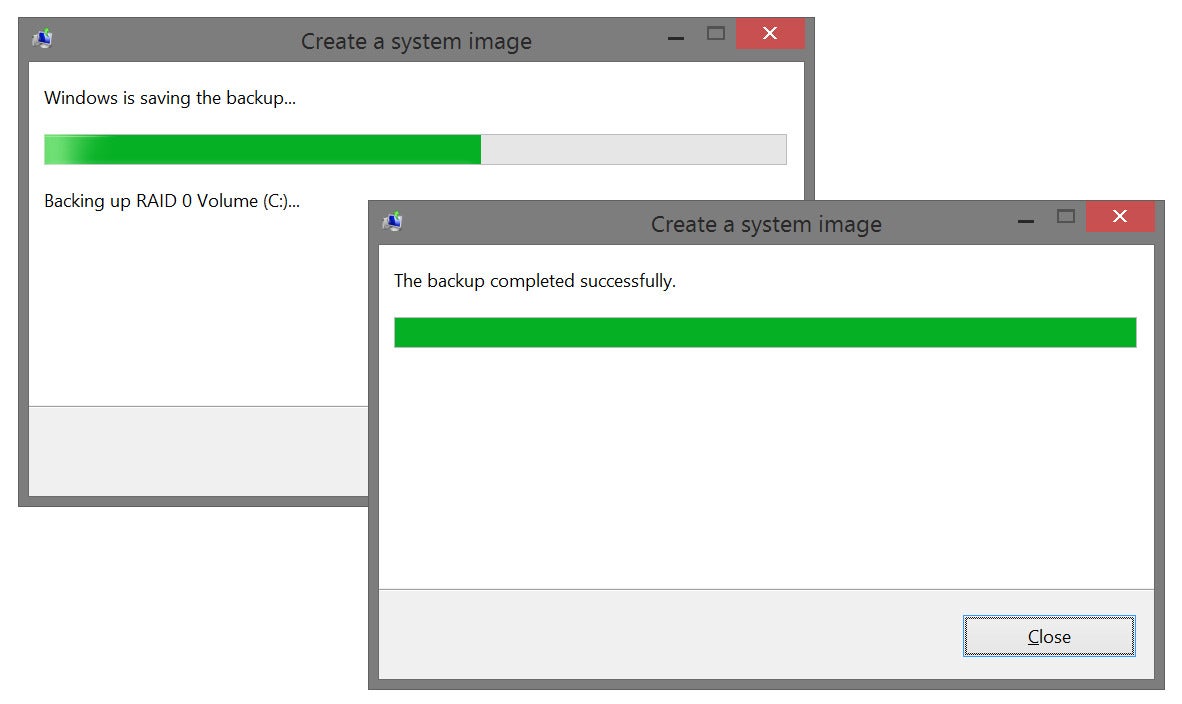
The actual restoration process is also quite easy. All you need to do is boot to the recovery disk created earlier, and on the first screen presented to you, select your preferred keyboard layout. Then select Troubleshoot > Advanced Option > System Image Recovery. The tool will then automatically scan your system for images and prompt you to restore the most recent image. If you stored your image on an external drive, be sure it’s connected when the recovery tool scans for images.
Synchronizing with SyncBackFree
System images are great for restoring an entire system back to its original state, but there’s no need to create new images constantly when only a few files may change on a system daily. To back up personal files, you could use Windows 8's File History, but SyncBackFree is much more intuitive and configurable, and it'll run on Windows XP on up.With SyncBackFree, you can create profiles for backing up, synchronizing, or copying individual files or folders from one location into another. You can also schedule those profiles to run at specific times, to maintain multiple copies of your data.
Once you’ve installed SyncBackFree, start the program and run through the 'New Profile' creation wizard. When it starts, you’ll need to name the profile. Afterward, click Next.
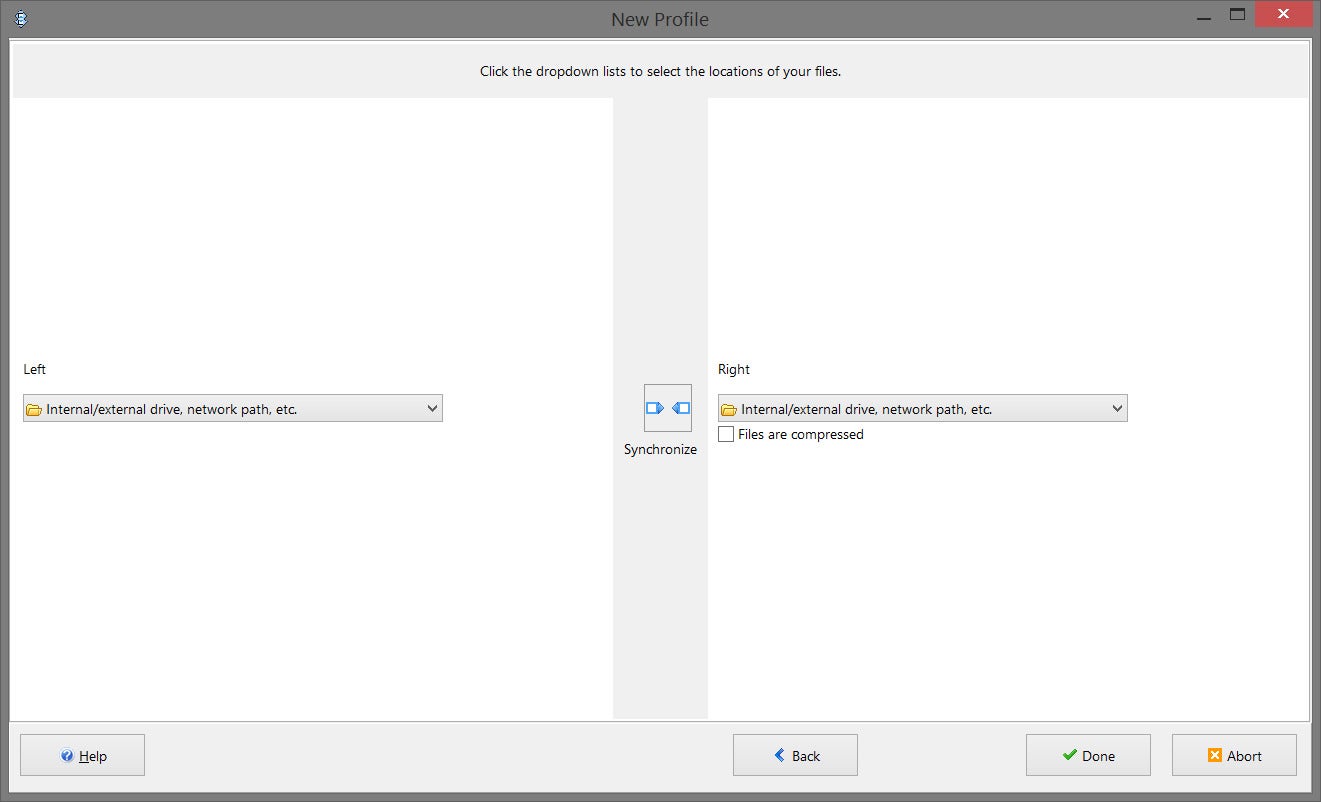

Once you’ve set your source and destination folders, right-clicking the profile and selecting Run will start the synchronization process. It’s best to create a schedule so the program will back up your files automatically on a regular basis. Right-click on the profile's name and select Schedule. When prompted, click Yes to create a new schedule. You'll also be able to choose what time to sync your folders.

Why would you want to do that? Every time SyncBackFree syncs the two folders, it overwrites the previous version of the data in the destination folder. Maintaining multiple profiles that back up to multiple locations protects against losing your files to data corruption or, say, a particularly nasty bit of ransomware that encrypts your files and throws away the key.
Put it in the Cloud!
You may also want to sync individual files for backup or sharing across several devices with SkyDrive (or Dropbox, or Google Drive, or…). That’s simply a matter of copying the files you’d like to back up into your cloud-storage service of choice. Check out our comprehensive article explaining how to use SkyDrive, and remember, its name will be changing to OneDrive sometime soon.There are countless other methods and tools available to back up a PC that may be better suited to your particular needs—we also have articles outlining how to protect your PCs with cloud backup services and offline hardware alike. If you’ve come across other tools or have handy tips and trips that may help fellow readers, we’d love to hear about them in the comments below. But this is for certain: Having a comprehensive backup plan in place can prevent a lot of heartache. Take the time and implement a backup plan that works for you—trust us on this one.
